
Multi-Layer Widget Map
Overview
-
The View Map tab is open by default in the Minimized State and the Maximized State opens with an expanded Map.
-
This view will show the result layers that the Multi-Layer widget is configured to show.
Common Interaction
Record Count
-
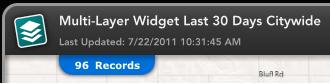
Whether in the Minimized or Maximized State, the record count is visible at the top left of the map window.
-
The record count identifies the number of records that are currently being displayed on the map.
Record Count for Multi-Layer Widget
Panning and Zooming
-
Both Minimized and Maximized States provide panning and zooming capabilities within the map.
-
There are three options to zooming into the map when the widget is in Minimized or Maximized States.
-
To zoom into the map, left click the mouse, hold down the shift key, and drag the mouse to create a zoom window.
-
Another way to zoom into the map is to use the mouse wheel. Click on the map, and push the mouse wheel to zoom in.
-
A third way to zoom into the map is to double click on the map which will zoom the map one zoom level.
-
To zoom out of the map, click on the map, and pull the mouse wheel.
Clustering
-
Clustering is used to improve the display performance of the Dashboard when a large number of features must be displayed.
-
Data points are grouped together according to their location if they are in close proximity to one another.
-
Clusters are identified with a standard symbol which includes the number of data points in each cluster.
-
Clicking on a cluster on the map, zooms the map to a smaller scale where more feature clusters may be displayed.
-
Zooming into the map can be repeated until individual features are revealed.
-
Clustering occurs in both the Minimized State and Maximized State. Clusters may appear different however between the two states.
Filter Widget with Clusters in Minimized State

Stacked Features
-
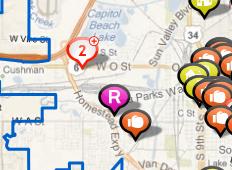
Stacked features are identified by a different icon which includes the number of features at the same geographic location.
-
The number within the icon indicates the number of features found at that location.
-
The feature stack is different from the feature cluster; a cluster is a set of features which have occurred near each other, while stacked features occur at the same location.
Individual Icons
Maximized State
-
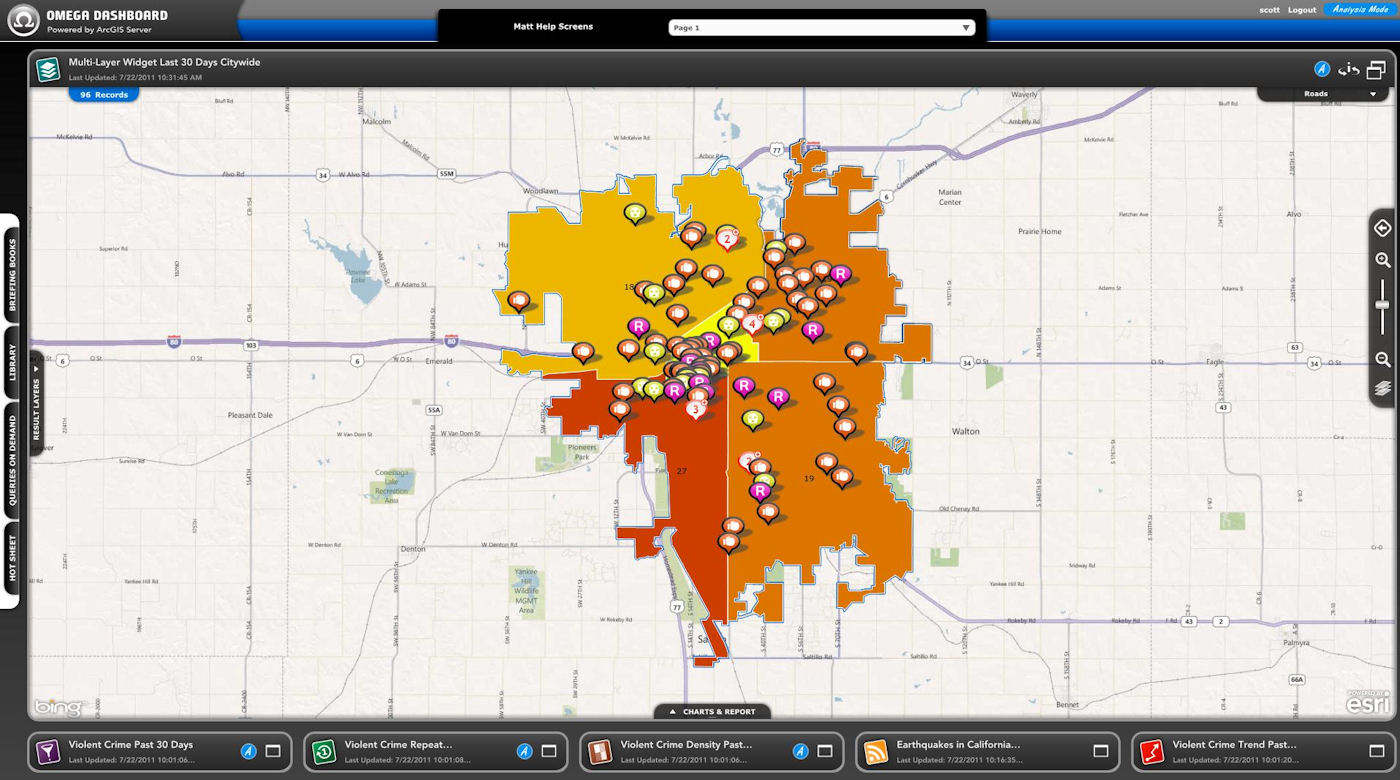
A Filter Widget in Maximized State has a number of features exclusive to the Maximized State.
Multi-Layer Widget in Maximized State
Identify Tool
-
One aspect of the Maximized State which is not available in the Minimized State is the ability to identify.
-
To identify a data point, zoom in on the map until clusters disappear.
-
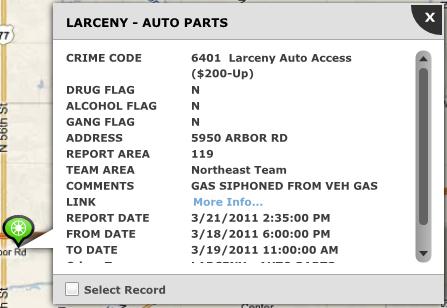
Click on any data point to view the Attribute Table containing detailed information about that incident.
-
If you click on a location that contains more than one data point, you can scroll through the incidents using the arrows on the upper right side of the Attribute Table.
-
You can click the Select Record check box on the bottom left portion of the Attribute Table dialogue box to highlight the selected data point on the map. A blue halo will highlight the data point.
Attribute Table
Results Layers Tab
-
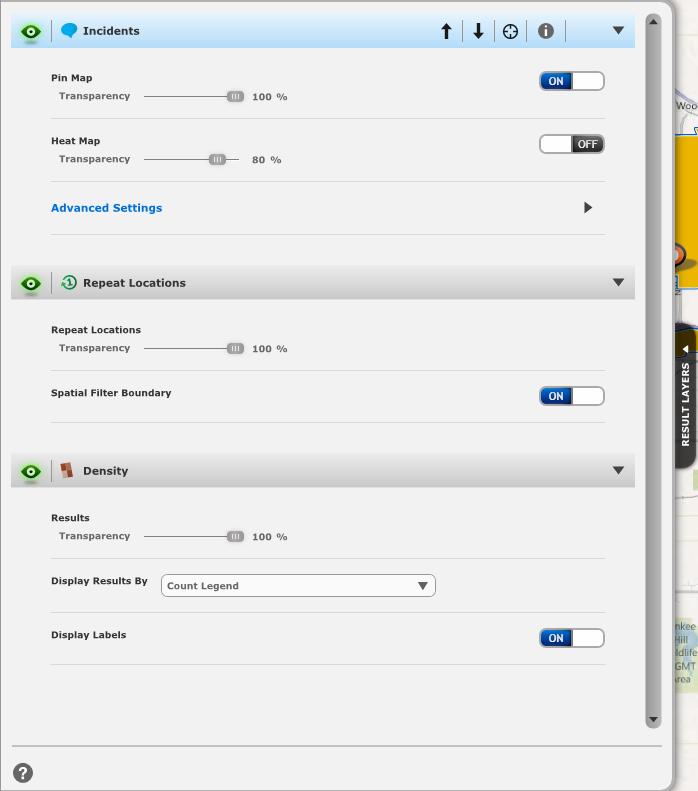
On the left side of the Widget you will see a Results Layers tab.
-
When expanded you can set options for the result layers, turn layers on or off and change the active layer.
-
The eye icon will let you turn layers on or off. This icon will be green if a layer is turned on and when turned off it will be grey.
-
You can then see the layer type and name.
-
On the right side of the line you can see up and down arrows that will let you set the priority of the layers on the map.
-
You can zoom to the layer with the circular x button.
-
The grey circular i icon will let you see information about the layer such as parameters.
-
You can expand the layer to set up options with the arrow all the way to the right.
Pin Map Options
-
-
Each type of Result Layer has different options you can use to customize how the results appear on the map.
-
You can see the Pin Map options on the image below as the first expanded Result Layer.
-
The Pin Map section is the first set of options when you expand a Pin Map Result Layer.
-
The Transparency slider will let you adjust the Transparency of the Pin Map.
-
The On/Off button will let you turn the Pin Map on or off.
-
The Heat Map options are below the Pin Map options.
-
You can adjust the transparency of the Heat Map using the slider.
-
You can turn the Heat Map on or off using the On/Off button.
-
The arrow on the right of the Advanced Settings line will let you expand and collapse the Advanced Pin Map Settings.
-
The Highlight Source Area On/Off button will turn off highlighting of the geographic boundary your results are contained in.
-
The Use Legend Type drop down menu will let you change the Legend Type for the results. The options on this menu will depend upon your Dashboard's configuration.
-
The Use Date/Time Group drop down will let you change the Date/Time group. The options on this menu will depend upon your Dashboard's Configuration.
-
Repeat Locations Options
-
-
The next expanded Result Layer you see on the image below is a Repeat Locations Result Layer.
-
The Repeat Locations section is the first option you see when you expand a Repeat Locations Result Layer.
-
The Transparency slider will let you adjust the transparency of the Repeat Locations Result Layer.
-
The next option you see is the Spatial Filter Boundary On/Off button. This allows you to turn the boundary on or off.
-
Density Map Options
-
-
The last expanded Result Layer on the image below is the Density Map Result Layer.
-
The Results section is the first option you see when you expand a Density Map Result Layer.
-
You can adjust the Transparency of the Density Map using the slider.
-
You can use the Display Results By drop down menu to display the results by Density or Count.
-
The Display Labels On/Off button will turn the labels on or off on the Density Map.
-
Results Layers tab for an Maximized Multi-Layer Widget
Base Map Options
-
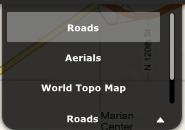
You can change the base map type using the drop down menu in the top right corner of the map.
-
The choices you see will depend upon your Dashboard's configuration.
Base Layer Drop Down
Map Toolbar
-
The toolbar in the central right portion of the map has tools to control the view of the map.
-
Clicking on the arrow in the upper left corner of the map toolbar, opens a full view of the map tools.
Map Toolbar
Overview Map
-
-
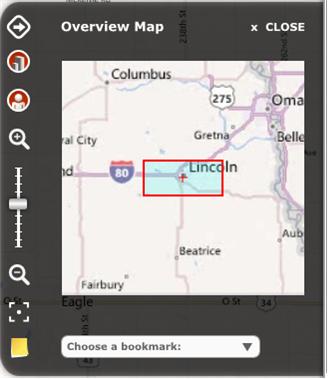
The Overview map gives an overview of the area in which the larger map is currently centered.
-
This tool is helpful to gain perspective on the geographic location of the map window.
-
Click on the highlighted window within the overview map, and pan the window to move the larger map.
-
Zoom Tools
-
-
The Zoom tools move in and out of the main map.
-
Zooming is accomplished using the magnifying glass tools or the zoom level slider.
-
The zoom tools allow individual incidents to be displayed, as the map scale is reduced, more features become visible.
-
The Home Extent tool moves both the Overview map and main map to the original extent of the widget.
-
Bookmarks
-
-
Bookmarks are available from the drop down list below the overview map, and are configured by the Administrators or Designers.
-
Each bookmark represents a map extent which can be accessed quickly by selecting the bookmark name from the list.
-
Related Links:
-
Table of Results
-
Temporal Heat Index Filter
