
Overview
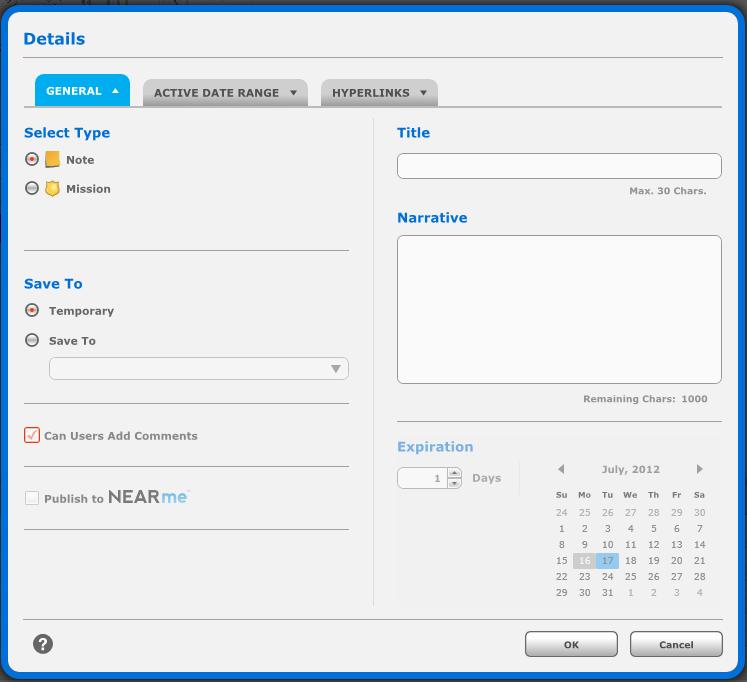
The Note Details wizard will allow you to fill out the details of your Note.
This Wizard will display after you have finished drawing your Point, Line or Polygon.
General Tab
In the Select Type section you choose whether to make a Note or Mission. You can only make a Mission if you have drawn a Polygon.
In the Save To section you will choose where to save your Note. Temporary will allow you to create a Temporary Note that will disappear when you log out of the application. The Save To radio button will allow you to choose a Note Group for your Note, or create a new Note Group.
The Can Users Add Comments check box will allow you to specify whether users can comment on your Note.
The Publish to NEARme option will be available to you if you are a NEARme customer and if you have made a Mission. This allows the Mission to be published to CrimeView NEARme.
You can enter a Title for your Note in the Title box.
The Narrative section will allow you to enter a Narrative for your Note. Your Narrative can be up to 1000 characters.
You can set the Expiration of your Note in the Expiration section. You can manually enter days in the box or use the arrows to arrow up to a number of days. Alternatively you can use the Calendar to choose an expiration date.
The Note Details Wizard.
Active Date Range Tab
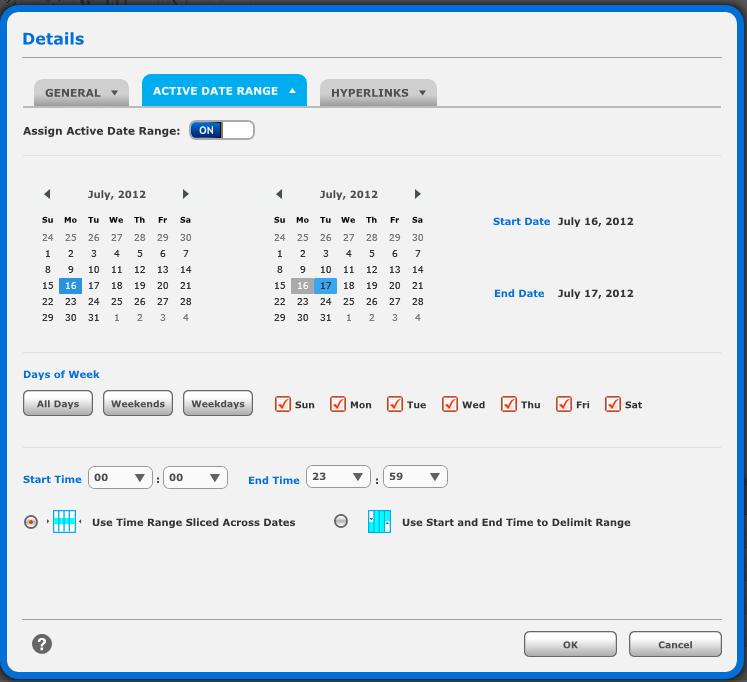
The default for Active Date Range is off. This means the Note or Mission will always be Active.
To specify an Active Date Range click the On/Off button.
You can use the calendar to specify your Active Date Range. Your Active Date Range cannot be longer than your Expiration.
You can also Choose specific days of the week for the Note or Mission to be active.
You can also choose the Time. The time can be a Time Slice across all dates or use the Start and End time to do all times between the Start and End date.
The Active Date Range Tab.
Hyperlinks Tab
On the Hyperlinks tab you can add Hyperlinks to your Note or Mission.
Click the Add button to Add a Hyperlink.
Enter the name for your link and the URL.
You can also Edit and Delete Hyperlinks.
The Hyperlinks tab.

Related Links:
