
Overview
The Playbook is available in the bottom right corner of the map for both Maximized Widgets and in Analysis Mode.
The Playbook will let you interact with all Missions and Notes that you are able to access.
You can Create, Edit and Delete Note Groups from this tab.
You can also Edit and Delete Missions and Notes from this tab.
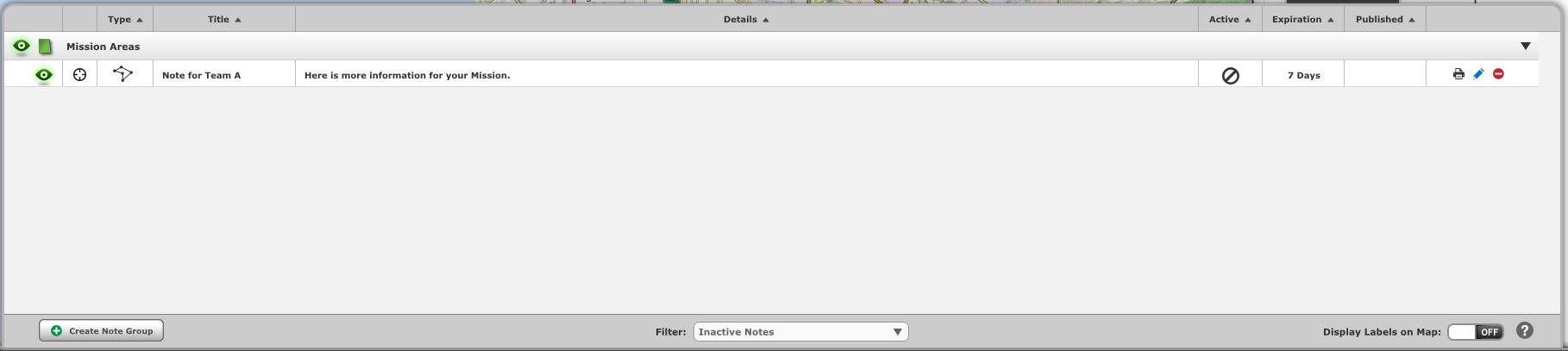
The Playbook.
You can re-size the Playbook by clicking and dragging the top edge of the Panel.
You can see each Note Group listed on this tab. If you are in Analysis Mode you will see all available Note Groups. If you are in a widget in Dashboard Mode you will see the Temporary, Global, and Note Groups in the current Briefing Book.
You can expand each Note Group by clicking on the Note Group's line.
When you hover over a Note Group's line you can see a Blue Pencil icon and Red Delete icon towards the right. These will allow you to edit and delete Note Groups. These may not be available to you depending on your user settings.
Once you have expanded a Note Group you can see each Note or Mission that is within that group.
You can display a Note on the map using the eye icon.
You can zoom to the Note on the map using the Zoom to button.
You can see the type of Note next. A pin will represent a Point Note. A line will represent a Line Note and a Polygon will represent a Polygon Note. A Badge over the type will designate a Mission.
You can then see the Title of the Note.
After the title you can see the Narrative. If your Narrative is really long you may not see the full text.
You can then see if the Note or Mission is active. A green check will mean Active, a black circle with a bar through it means Inactive.
The Expiration date will tell you when the Note will expire.
You can then see if it is a Mission that has been published to NEARme. Note: you must be a NEARme customer to publish Missions.
You can use the Print Icon to print the Note or Mission.
The Blue Pencil icon and Red Delete icon will let you Edit and Delete the Note. These may not be available to you depending on your user settings.
You can sort the Notes in each Note Group by Type, Title, Details, Active and Expiration by using the Arrows at the top of each of these columns when a Note Group is expanded.
In the bottom left corner of this tab you can see a Create Note Group button. You can read about creating a Note Group here.
In the center you can see the Filter drop down. Here you can Filter by Show All, All Missions, Active Missions, Inactive Missions, All Notes, Active Notes or Inactive Notes.
The Display Labels On/Off button on the right will be off by default. Turning this on will display the Titles for Missions and Notes on the map.
The Playbook.
Related Links:
