
Overview
Depending on your Agency's configuration you may have Notes and Missions available for use.
Notes and Missions are available in both the Maximized Widgets and Analysis Mode.
You can create Point, Line and Polygon notes. You can also create Polygon Missions.
Notes and Missions can be assigned to Briefing Books, assigned Globally or created Temporarily.
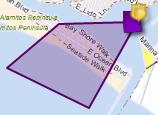
A Mission will be denoted by a Badge icon on the right corner of the Note symbol.
If your agency also has NEARme, you can publish missions to NEARme.
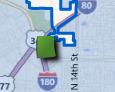
A Point Note in the Dashboard on the left and a Mission Polygon on the right.
Note Types
There are three types of Notes you can create: Point Notes, Line Notes and Polygon Notes.
You can create one type of Mission: Polygon Missions.
A Point Note will let you create a Note for a point you specify on the map.
A Line Note will let you create a Note for a line you specify on the map.
A Polygon Note will let you create a Note for a Polygon you specify on the map.
A Polygon Mission will let you create a Polygon and outline a mission for that area, such as a directed patrol.
Choosing a Note Type and Creating a Note
The Note icon on the Map Toolbar will allow you to create a Note or Mission.
Hover over the Note icon to display the three types of Notes you can create.
Once you click on the type of Note you would like to create you can draw it on the map.
For a Point Note, click on the point on the map in which you would like your Note.
For a Line Note, click on the map where you would like to start your line. You can then single click to draw more vertices or double click to end your line.
For a Polygon Note or Mission, click on the map where you would like to start your Polygon. You can then single click to add more sides to your Polygon or double click to close your Polygon.
Once you have finished drawing your Note Type, you can click Cancel, Redraw or Finish on the Drawing Options.
Clicking Finish will then launch the Note Details Wizard.
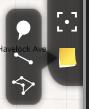
The Note Icon and with each Note Type icon showing.
Related Links:
