
Designer Mode
Overview
-
Designer Mode is used to create content for the Omega Dashboard, as well as create the users that will access the content through Dashboard Mode or Analysis Mode. Designer Mode is available only to Administrators and Designers.
-
Administrators and Designers share the ability to create Briefing Books, Widgets, Queries on Demand and Alerts. However only Administrators can map Briefing Books to roles, create Query and Alert groups and create Users and Roles.
-
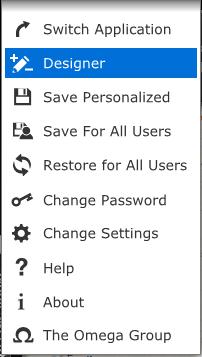
To access Designer Mode, click on the Omega Button and choose the Designer option. This is the second option down. You can access Designer Mode from both Dashboard Mode and Analysis Mode.
What is the Purpose of Designer Mode?
-
Designer Mode is where content is created for the Omega Dashboard.
-
Widgets, Queries on Demand and Alerts can all be managed from within Designer Mode.
-
Designers work with the data that the Omega Dashboard has been configured to use to make this content.
Designer option on the Omega Button Menu.
Designer Mode UI Overview
-
The Omega Button drop down menu is located in the top left corner in Designer Mode, just as it is in Dashboard Mode and Analysis Mode.
-
You can switch back to Dashboard Mode or Analysis Mode by using the buttons in the top right corner of Designer Mode.
-
You can see the User Type you are logged in as under the Omega Button and Dashboard Logo.
-
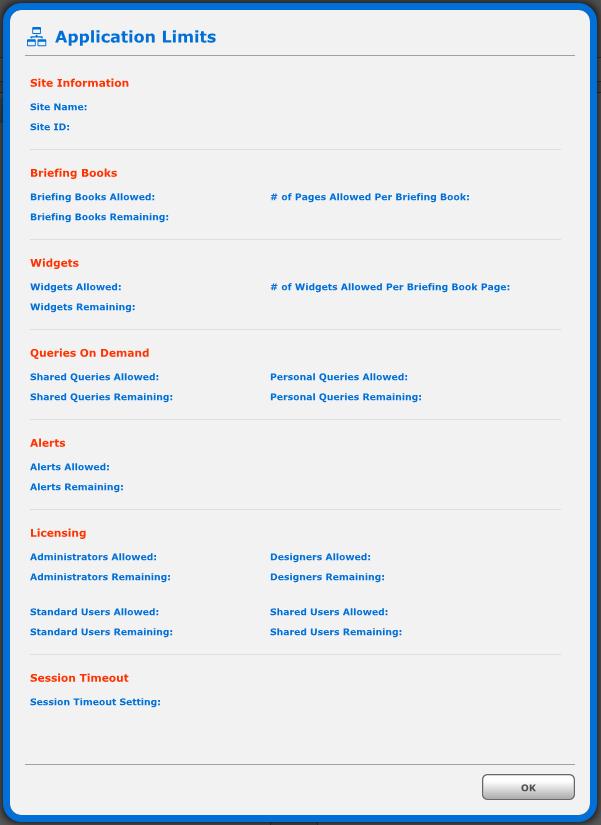
The Application Limits button on the right side of Designer Mode shows you the content limits and other information for your Dashboard.
-
You can use the tabs on the left side of the UI to access Briefing Books tab, Queries on Demand tab or the Alerts tab.
Designer Mode UI.

Application Limits Dialogue Box.
-
Some items within Designer Mode can be reordered.
-
Queries on Demand and Alerts can be reordered by both Administrators and Designers.
-
Additionally, Administrators can reorder Briefing Books, Query Groups and Alert Groups.
-
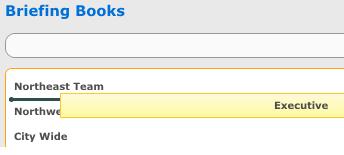
To reorder these items, left click on what you wish to reorder, drag it to the position you wish to place it, and drop it there.
Reordering Items
Related Links:

© Copyright 2011 The Omega Group. All Rights Reserved.